On this page
Deploying an app
Deploy on an app's page runs the app's production build where people can reach it. Production has a database of its own, so your development data is never touched.
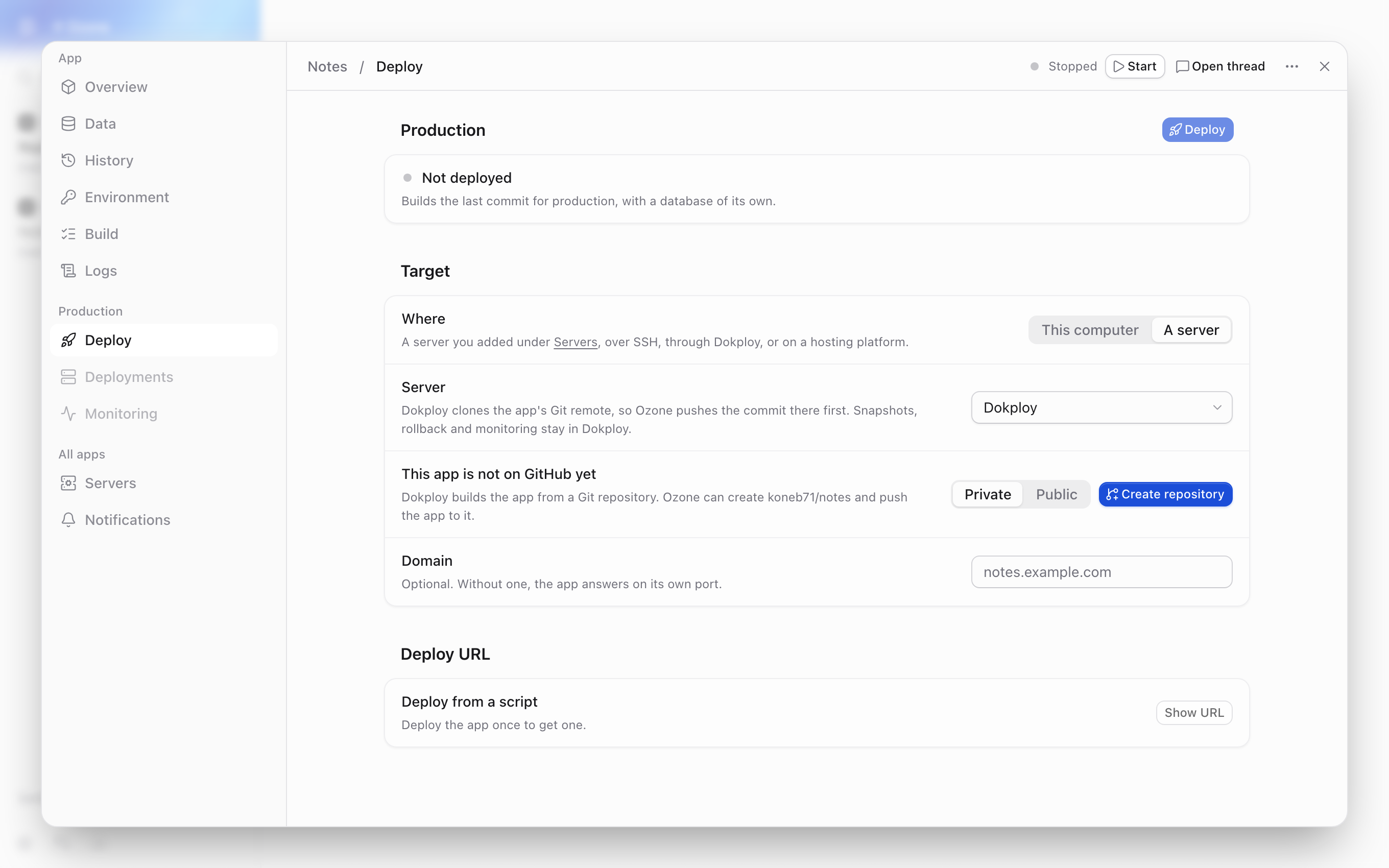
Where an app can run
| Where | Who runs the containers | What you need |
|---|---|---|
| This computer | Ozone | Docker |
| A server over SSH | Ozone | A Linux server you can sign in to |
| Dokploy | Dokploy | Your Dokploy address and an API key |
| Railway, Render, Koyeb | The host | A token from the host, and a GitHub repo |
| Vercel | Vercel | A token. Only for apps without a database |
When Ozone runs the containers you get the most: snapshots before every deploy, rollback to any earlier deploy, a domain with HTTPS, monitoring, and moving the data when you change servers.
When Dokploy or a hosting platform runs the app, it owns the containers and the data. Snapshots, rollback and monitoring stay with that host, and Ozone never deletes anything there.
A deployment to this computer answers only on this computer, at localhost. Opened from another
device, Ozone shows that address as text, not as a link that cannot open. Give it a domain, or
deploy to a server, to reach it from elsewhere.
Add a server
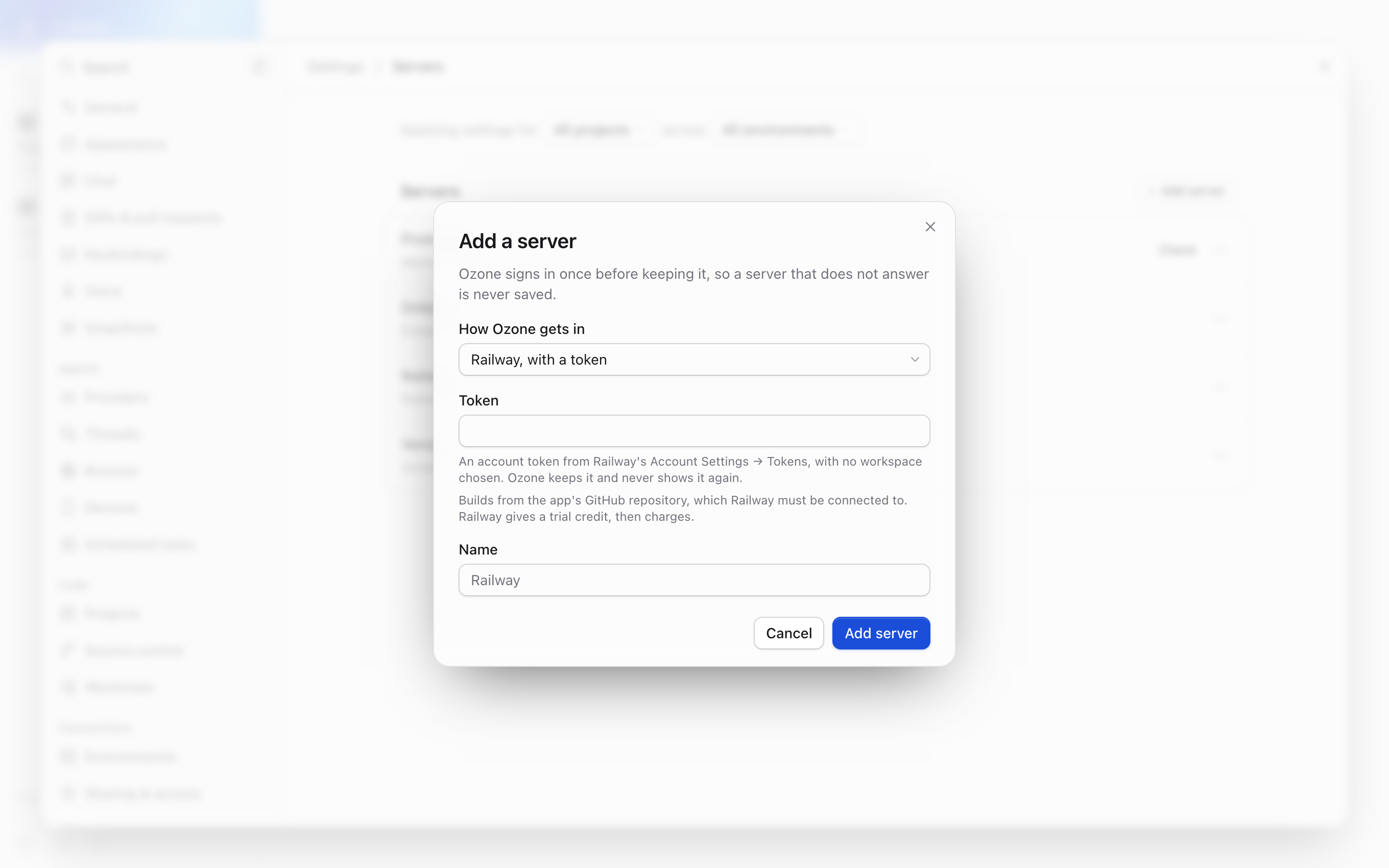
Servers are added once and offered to every app. Open Settings, then Servers, or Servers on any app's page, and choose Add server.
- This computer's SSH keys: for a server that
ssh user@hostalready signs in to. - Paste Ozone's key on it: Ozone shows one command to run on the server, which lets its own key in.
- Sign in with a password once: Ozone uses the password to install its key and then forgets it.
- Dokploy, with an API key: from Dokploy's Settings, Profile, API/CLI.
- Railway, Render, Koyeb, Vercel: a token from that host's account settings. The dialog says where to find it.
Ozone signs in once before saving, so a server that does not answer is never saved. Keys and tokens stay on your machine and are never shown again.
For an SSH server, Set up on the Deploy page checks it, installs Docker if it has none and starts the proxy that serves domains.
Deploy
The Deploy button appears once the app has started successfully for the first time. Before that there is nothing to deploy.
- Open the app's page and choose Deploy.
- Choose This computer or A server, and pick the server.
- Optionally give a domain. Point it at the server first. Ozone serves it over HTTPS and swaps in each new version without the app going down. On a hosting platform, set the domain up there.
- Press Deploy.
The same button sits at the top of the app's page, whichever section you are in. It reads Deploy until the app is deployed, Push update when the app has changes production does not have yet, and Deploy again when production is current. Pushing an update sends the newest commit to where the app already runs. To move it somewhere else, change Where it runs on the Deploy page and press Deploy here instead.
Each deploy builds the app's last commit, applies its database migrations and starts it. A migration that could lose data is held back until you apply it. On Dokploy and hosting platforms Ozone cannot take a snapshot first, so apply such a migration on the host.
Variables for one place
An app's variables, under Environment, go wherever it runs. To give it a value that applies in one place only, such as a live API key on the server, add it under Variables on … on the Deploy page, below Where it runs. The list is for the place selected there: this computer or the chosen server.
The app gets those at its next deploy to that place. When it has a variable of the same name under Environment, the one for the place is used there. They belong to this app; other apps on the same server do not get them. A secret is never shown again.
Hosts that build from a Git repository
Dokploy, Railway, Render and Koyeb build the app from a Git repository, and a new app has none. The Deploy page says so before you deploy and offers Create repository: pick private or public, and Ozone creates the GitHub repository, makes it the app's origin and pushes. Sign in to GitHub under Settings, Source control first.
- Dokploy cannot read a private repository by itself. Ozone gives it a read-only key for the
repository, using the
ghcommand line's sign-in. Without that, the deploy stops and shows the key to add under the repository's deploy keys. - Railway and Koyeb need their GitHub app connected to the repository in their own dashboard. Render needs that for a private repository.
What the free plans do
- Railway gives a trial credit, then charges.
- Render puts a free app to sleep when idle and deletes a free database after about a month.
- Koyeb allows one free app and one small free database, and asks for a card.
After the first deploy
- Deployments lists every deploy with its output. When Ozone runs the containers, roll back to any of them, with the data from then if you ask.
- Monitoring shows each container's CPU, memory, network and logs when Ozone runs them.
- Stop production takes the app offline and keeps its data for the next deploy.
- Delete deployment, in the menu beside it, removes production from where it runs. See below.
- Deploy from a script gives the app a URL that redeploys it when called.
- Notifications tells Slack, Discord, Telegram or any webhook how each deploy went.
- Build can deploy by itself whenever a build completes.
See and delete deployments
Settings, Servers lists every app Ozone deployed: where it runs now, where it ran before, and apps you deleted from Ozone whose deployment is still out there. Each one shows whether it is running, stopped, or only has its data left. Check again asks each machine once more.
To take one down for good, open its menu and choose Delete deployment. Ozone first saves a snapshot of its production data to this computer, then removes its containers, its images and its database there. The snapshot is kept: deploy to that place again and restore it under Data to bring the app back as it was. Until then the app's Data page still lists the snapshot, and its Deployments page still shows what was deleted. An app's Deploy page offers the same for where it runs and where it ran before.
Deleting where an app runs also turns off Deploy when a build completes, since a build has nowhere left to go. Turn it on again after the next deploy.
- Ozone deletes only what it runs itself, on this computer or a server. A deployment on Dokploy or a hosting platform is listed with a link to the host, where you delete it.
- A server that does not answer is shown as such, and nothing is deleted there until it does.
- Remove a server only after deleting the deployments you no longer want on it: without its key, Ozone cannot reach them.